As we increasingly rely on multiple Large Language Models (LLMs) and AI-powered tools, managing their skills sets can become a logistical challenge. Each tool often maintains its own separate folder for skills, leading to duplication of effort when you want to share or update them. If you want to maintain a consistent set of capabilities across your entire AI toolkit, you need a better way.
This post introduces a straightforward solution: a batch script that creates a centralized repository backed up to Git for all your LLM skills. By using symbolic links, you can trick various tools into using a single, unified skills directory, simplifying management and ensuring consistency.
The Problem: Disconnected Skillsets
When you work with tools like Google’s Gemini CLI and Antigravity, each one stores its skills in a dedicated user-profile directory (e.g., %USERPROFILE%\.gemini\skills). If you develop a useful new skill, you have to manually copy it into the folder for every tool you use. This process is not only tedious but also prone to error. It’s easy to forget to update a skill in one of the locations, leading to inconsistent behavior and outdated capabilities in some of your most-used tools.
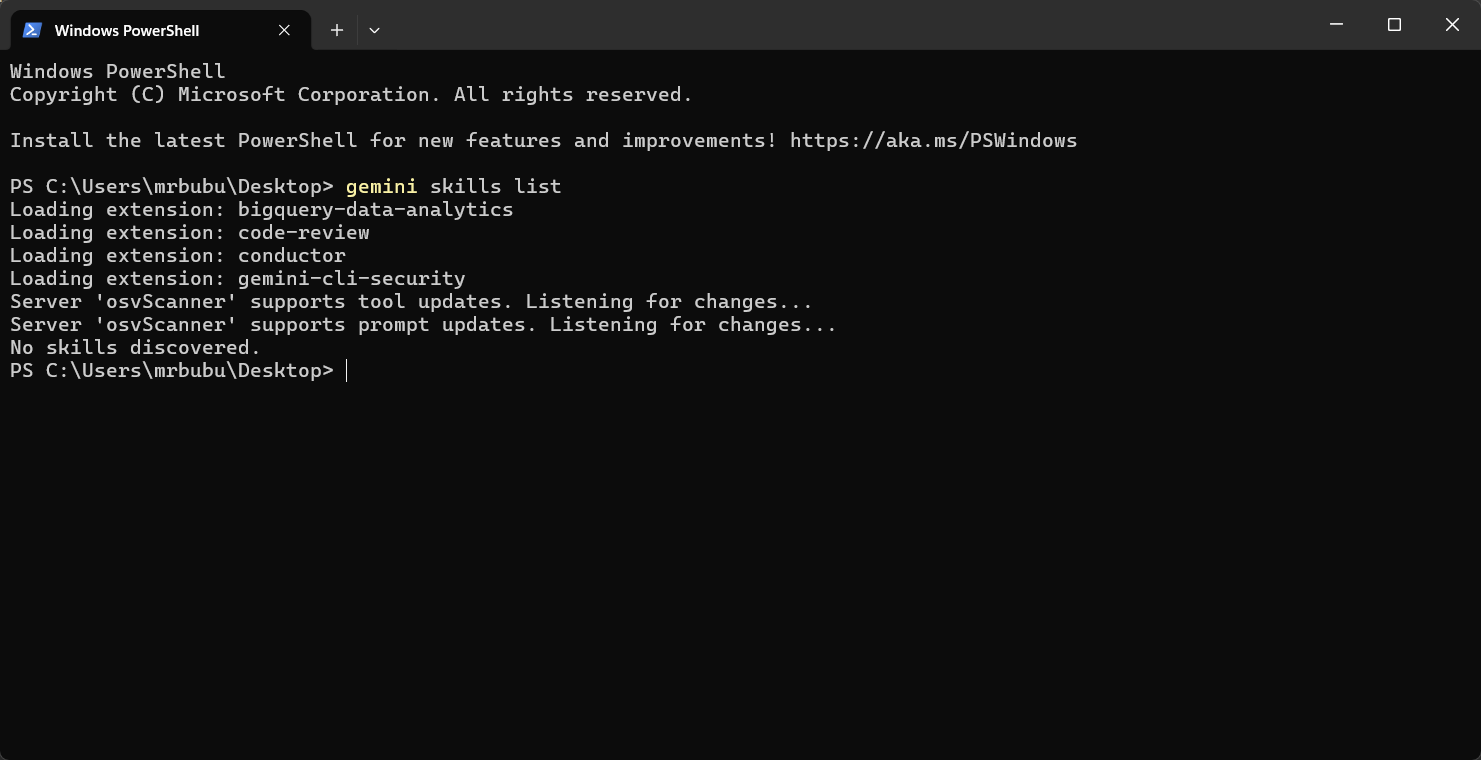
You might ask why not to you use Gemini CLI from Antigravity, as it has a Gemini CLI extension. I do that too, but sometimes Gemini CLI is just a faster way to do a task for me. Run the terminal, type gemini and talk to it. Or even gemini -p "Do some stuff".
The Solution: A Centralized Skills Directory
To solve this, you can use a simple Windows batch script to designate a single folder as the master source for our skills. This script will then automatically create symbolic links, which act as pointers, from the default skill locations of your AI tools to this new central folder.
Here is the example of this script for Windows:
@echo off
setlocal

:: =======================================================
:: CONFIGURATION
:: =======================================================
set "TARGET_DIR=%USERPROFILE%\your\main\folder\for\skills"
set "GEMINI_LOC=%USERPROFILE%\.gemini\skills"
set "ANTIGRAVITY_LOC=%USERPROFILE%\.antigravity\skills"

:: =======================================================
:: 1. CHECK FOR ADMINISTRATOR RIGHTS
:: =======================================================
net session >nul 2>&1
if %errorLevel% neq 0 (
    echo.
    echo [ERROR] This script requires Administrator privileges.
    echo Please right-click this file and select "Run as Administrator".
    echo.
    pause
    exit /b
)

:: =======================================================
:: 2. CREATE SYMLINKS (ACTIVE CODE)
:: =======================================================
echo.
echo [START] Setting up centralized skills...

:: Create the central folder if missing
if not exist "%TARGET_DIR%" (
    echo [INFO] Creating central folder: %TARGET_DIR%
    mkdir "%TARGET_DIR%"
)

:: Link Gemini
if exist "%GEMINI_LOC%" (
    echo [INFO] Removing existing Gemini folder/link...
    rmdir /S /Q "%GEMINI_LOC%"
)
echo [LINK] Linking Gemini...
mklink /D "%GEMINI_LOC%" "%TARGET_DIR%"

:: Link Antigravity
if exist "%ANTIGRAVITY_LOC%" (
    echo [INFO] Removing existing Antigravity folder/link...
    rmdir /S /Q "%ANTIGRAVITY_LOC%"
)
echo [LINK] Linking Antigravity...
mklink /D "%ANTIGRAVITY_LOC%" "%TARGET_DIR%"

echo.
echo [SUCCESS] Skills are now centralized!
echo Location: %TARGET_DIR%
goto :END


:: =======================================================
:: EMERGENCY RESTORE / UNLINK SECTION
:: =======================================================
:: Instructions:
:: To UNLINK and return to normal, remove the ":: "
:: from the start of the command lines below.
::
:: NOTE: "rmdir" on a symlink deletes the LINK, NOT your files.
:: Your skills in "Desktop\dev\..." will remain safe.
:: =======================================================

:: echo [RESTORE] Unlinking Gemini...
:: rmdir "%GEMINI_LOC%"
:: mkdir "%GEMINI_LOC%"
:: echo [INFO] Gemini restored to default folder.

:: echo [RESTORE] Unlinking Antigravity...
:: rmdir "%ANTIGRAVITY_LOC%"
:: mkdir "%ANTIGRAVITY_LOC%"
:: echo [INFO] Antigravity restored to default folder.

:END
pause
How the Script Works
- Configuration: At the top, you define the paths for your central skills directory (
TARGET_DIR) and the default skill locations for your tools (GEMINI_LOC,ANTIGRAVITY_LOC). You can customize these to match your setup. - Administrator Check: The script first checks if it’s running with administrator privileges. This is crucial because creating symbolic links with
mklinkis a protected operation in Windows. - Directory Management: It ensures the central skills directory exists. Then, it safely removes any existing skills folders from the default tool locations.
- Symbolic Linking: The core of the script is the
mklink /Dcommand. It creates a directory symbolic link from the default location (e.g.,%USERPROFILE%\.gemini\skills) to your new central directory. From the perspective of the AI tool, it is still reading from and writing to its default folder, but the operating system is redirecting all of that activity to your unified skills folder. - Restore Section: A commented-out section at the end provides a quick way to undo the changes. By uncommenting and running the commands, you can remove the symbolic links and restore the default, empty skill folders for each tool.
The Value of a Unified Skills Repository
Adopting this approach offers several key benefits:
- Single Source of Truth: Any new skill added to the central directory is instantly available to all linked tools. There’s no need to copy-paste.
- Effortless Updates: When you improve a skill, you only need to edit it in one place. The changes are immediately reflected everywhere.
- Simplified Backups and Version Control: Your entire collection of skills is contained in a single folder. This makes it incredibly easy to back it up with Git. You can track changes, revert to previous versions, and even collaborate on skill development with others.
- Consistency: You can be confident that all your AI tools are operating with the exact same set of instructions and capabilities, eliminating frustrating inconsistencies.
Conclusion
By leveraging a simple symbolic links feature this method provides a robust solution for managing a growing library of LLM skills. It centralizes control, reduces manual effort, and ensures a consistent experience across your AI toolchain. It’s a small investment in organization that pays significant dividends in efficiency and reliability.